
01
Build scene depth
Describe foreground, midground and background, including subject scale and light direction.
 HiDream
Explore scenes, spaces and viewpoints through world concept images.
위에서 아이디어를 입력해 시작하세요.
Develop scene concept images from setting, architecture, terrain and lighting. Carry a visual direction through references, then bring an image into video creation to plan motion.
Explore the HiDream project ↗Describe foreground, midground and background, including subject scale and light direction.

Keep architecture, terrain and palette descriptions consistent while changing the viewpoint across concept images.
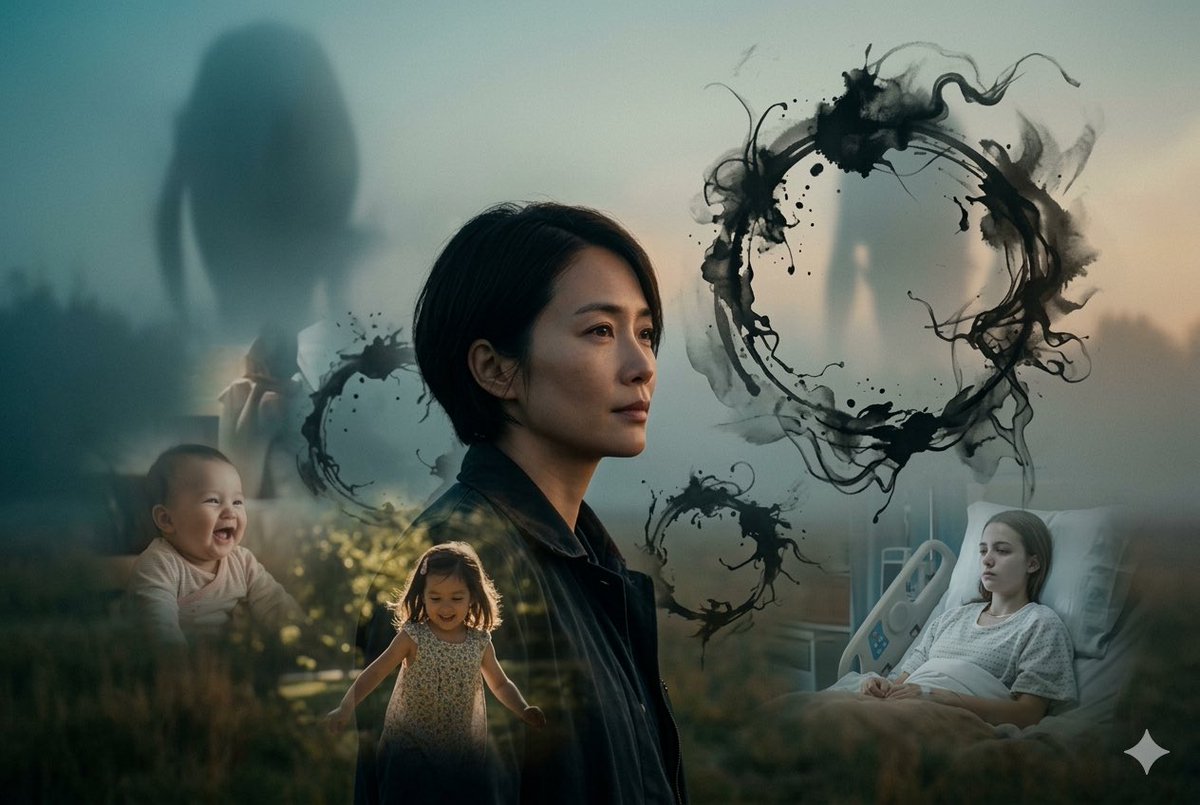
Download a scene or use it as a video first frame, then describe motion and camera movement.
Describe subjects, background, composition and light. Add references to build on an existing image.
Choose the ratio, 1K or 2K resolution and task count, then review the credit estimate before submitting.
Open the result to download the original, favorite it or use it as a reference for the next edit.
Model information, references, credits and managing your work.
It produces 2D scene concept images for preview, download and editing. It does not export 3D meshes, interactive scenes or game project files.
References and consistent descriptions help carry visual features across images, but the outputs are not a geometric 3D reconstruction. Check scale, structure and perspective for spatial design.
Choose 1K or 2K output and a square, landscape or portrait ratio. Resolution sets the output size tier; the ratio sets the canvas shape.
Editing accepts JPG, PNG and WebP, up to 20 MB each and 10 references. Use clear originals and describe the role of each image.
The composer shows credits for the selected resolution and task count. Credits are reserved on submission, settled on success and released for failed tasks. Batch tasks are handled separately.
1K costs 6 credits per image and 2K costs 20. Multiply by the task count for the total. Credits are reserved on submission, settled on success and released for failed tasks.
Filter Results by image, video or status, open an item to download the original file, and use the star to favorite it. Sign in to the same account to access your history.
Refresh history before resubmitting. Revisit processing tasks later; for failures, check the prompt, references and settings before retrying. Reopen the result if a download is interrupted.
Start with 1K to review composition and choose 2K when you need more output detail. Batch images are separate tasks; check the total credits before submitting.