
01
Define the edit
Describe what to replace, add or remove, followed by subjects, composition and background to preserve.
 HiDream
Upload an original and describe the changes in natural language to refine it step by step.
Describe an idea above to get started.
HiDream-E1 is an open-source instruction-based image editing project built on HiDream-I1. E1.1 adds dynamic resolution and improves editing quality and instruction following, including direct style-transfer instructions.
Read the source documentation ↗Describe what to replace, add or remove, followed by subjects, composition and background to preserve.
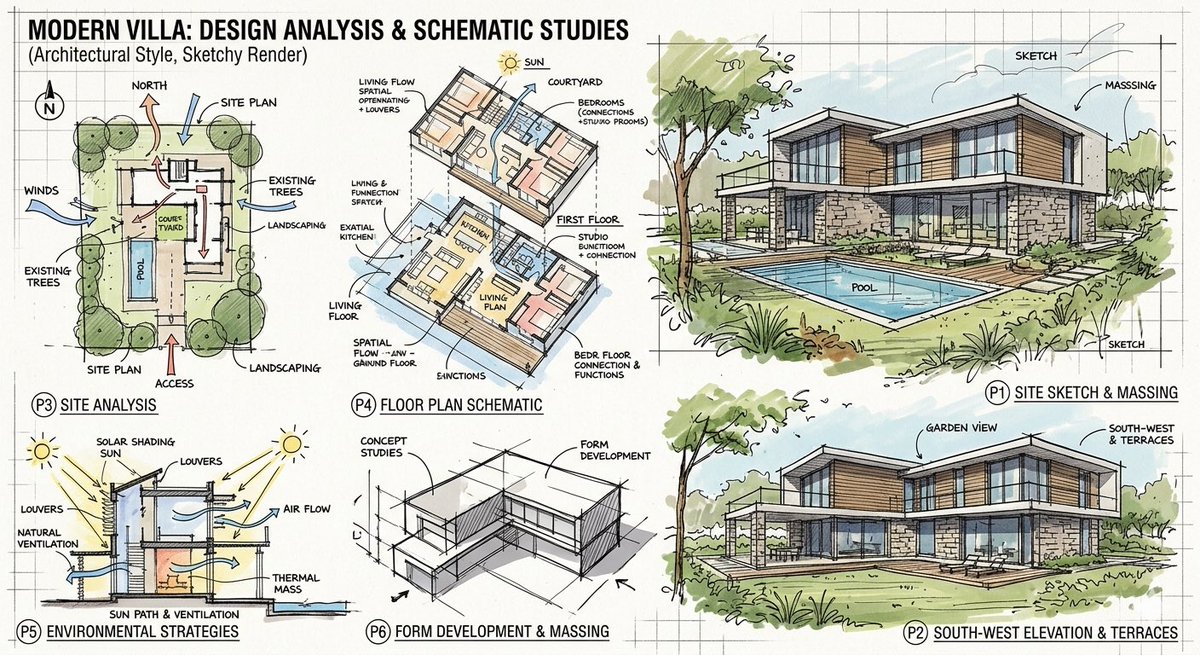
Start by changing background, color or lighting while specifying product shapes and facial details to preserve. Compare each output with the original.
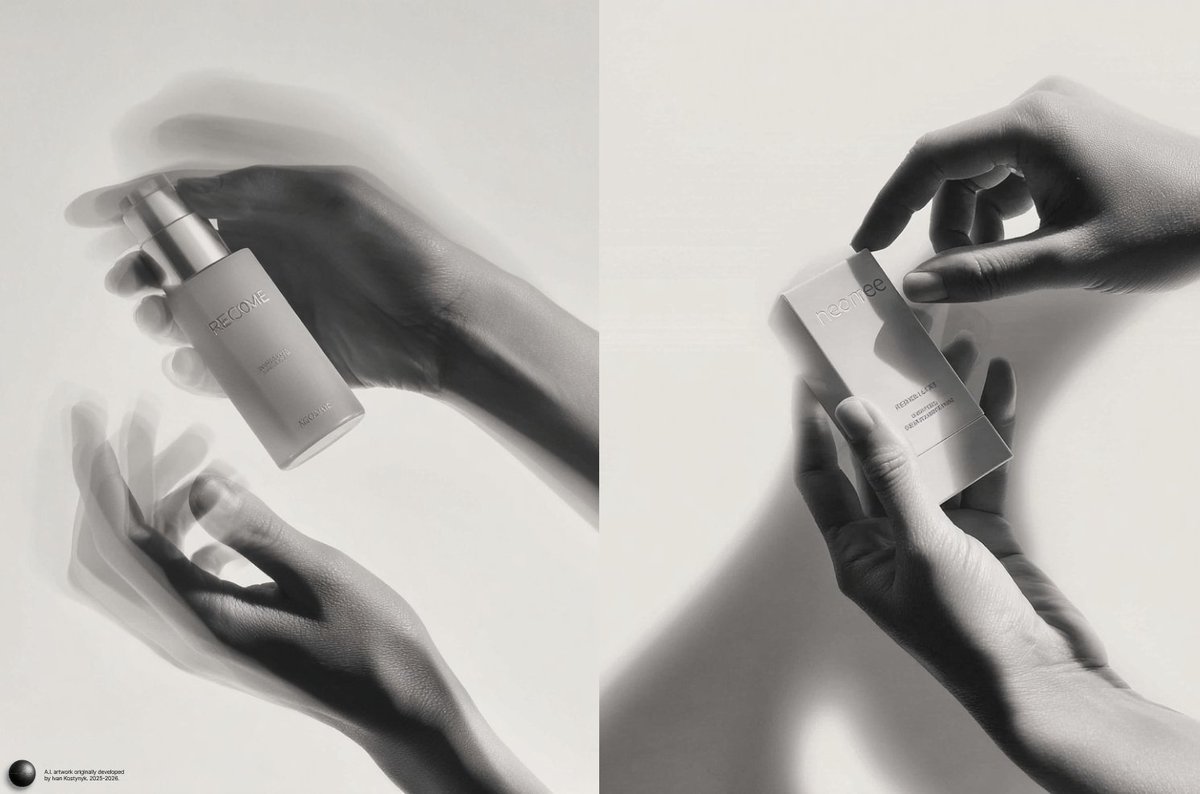
Use an approved version as the next reference and focus the instruction on changes needed in that iteration.
Choose image editing, upload a clear reference and describe what to change and preserve.
Choose the ratio, 1K or 2K resolution and task count, then review the credit estimate before submitting.
Open the result to download the original, favorite it or use it as a reference for the next edit.
Model information, references, credits and managing your work.
Official I1 focuses on text-to-image generation; E1 combines an input image with editing instructions. Start in image-editing mode to modify an existing picture.
Upload one original image, then add an editing instruction. Specify what to change and what to preserve.
Instructions guide the edit but do not guarantee pixel-identical surroundings. Zoom in to check faces, logos and product details, and narrow the edit if needed.
Choose 1K or 2K output and a square, landscape or portrait ratio. Resolution sets the output size tier; the ratio sets the canvas shape.
Upload one JPG, PNG or WebP original, up to 20 MB. Use a clear image and describe what to change and preserve.
1K costs 6 credits per image and 2K costs 20. Multiply by the task count for the total. Credits are reserved on submission, settled on success and released for failed tasks.
Open a result and choose Use as reference to bring it into editing. Specify what to change and preserve, or reuse its prompt for a new composition.
Filter Results by image, video or status, open an item to download the original file, and use the star to favorite it. Sign in to the same account to access your history.
Refresh history before resubmitting. Revisit processing tasks later; for failures, check the prompt, references and settings before retrying. Reopen the result if a download is interrupted.
Start with 1K to review composition and choose 2K when you need more output detail. Batch images are separate tasks; check the total credits before submitting.