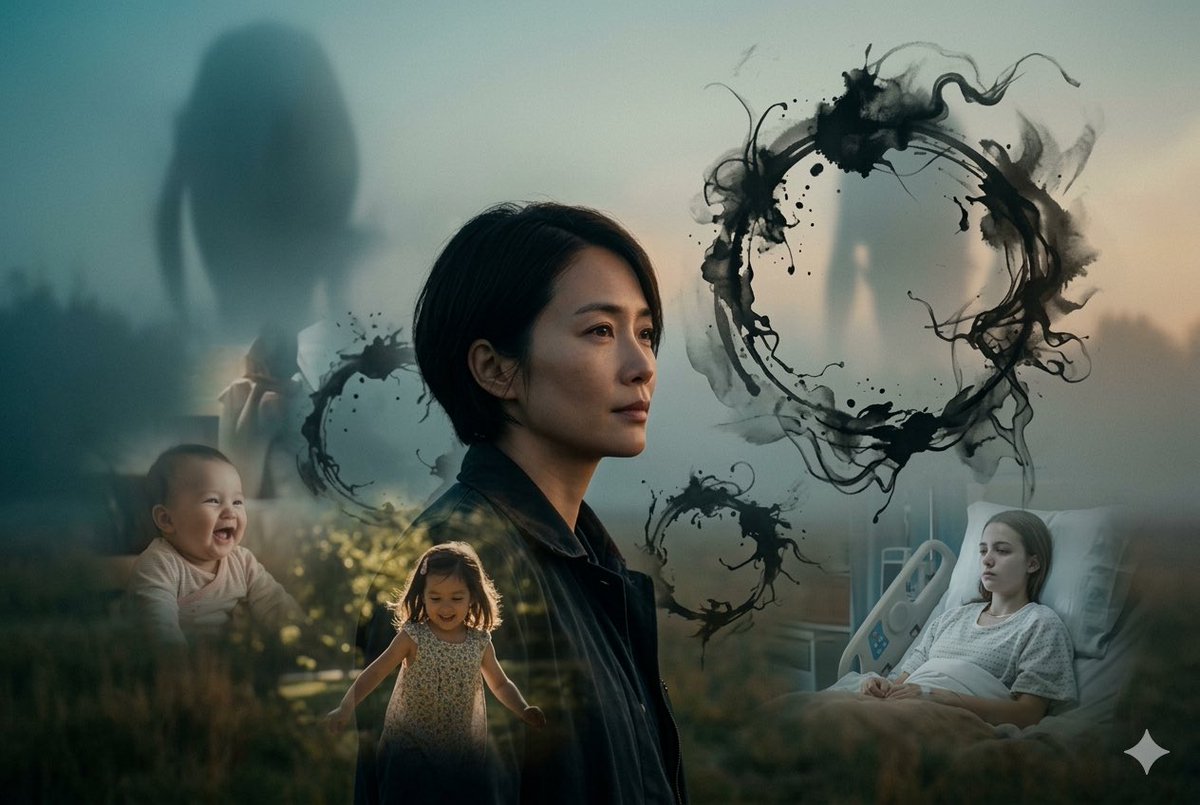
01
Describe the composition
Start with subjects and counts, then placement, background, light and style. Use several short sentences for complex scenes.
 HiDream
Turn written ideas into images by describing subjects, settings and light.
Describe an idea above to get started.
HiDream-I1 is an open-source 17B image generation model using a sparse diffusion Transformer. Its official Full, Dev and Fast variants use 50, 28 and 16 inference steps respectively.
Read the source documentation ↗Start with subjects and counts, then placement, background, light and style. Use several short sentences for complex scenes.

Try photography, illustration or concept design around the same subject. Change style and light while keeping scene details stable.
Once you find a composition, bring the result into E1 to refine its background, materials or colors.
Describe subjects, background, composition and light. Bring a result into E1 when you want to edit it.
Choose the ratio, 1K or 2K resolution and task count, then review the credit estimate before submitting.
Open the result to download the original, favorite it or use it as a reference for the next edit.
Model information, references, credits and managing your work.
The official HiDream-I1 project focuses on text-to-image generation, with 17B parameters and MIT-licensed code and models.
These are official checkpoint variants with 50, 28 and 16 steps. They describe official inference configurations rather than selectable modes in this composer.
Specify counts, left/right placement and foreground/background relationships. Simplify unrelated details and address one composition issue at a time.
Choose 1K or 2K output and a square, landscape or portrait ratio. Resolution sets the output size tier; the ratio sets the canvas shape.
I1 uses text input. Choose E1 to edit an existing image, or O1-Image to create with multiple references.
1K costs 6 credits per image and 2K costs 20. Multiply by the task count for the total. Credits are reserved on submission, settled on success and released for failed tasks.
Reuse the prompt to adjust composition. To edit a result, choose Use as reference to open E1 and describe what to change and preserve.
Filter Results by image, video or status, open an item to download the original file, and use the star to favorite it. Sign in to the same account to access your history.
Refresh history before resubmitting. Revisit processing tasks later; for failures, check the prompt, references and settings before retrying. Reopen the result if a download is interrupted.
Start with 1K to review composition and choose 2K when you need more output detail. Batch images are separate tasks; check the total credits before submitting.